How to use the portal
This help shows in nine steps how to use the portal. Six screenshots and four common errors with fixes follow.
The portal is the entry page of the Sport-X Data Space
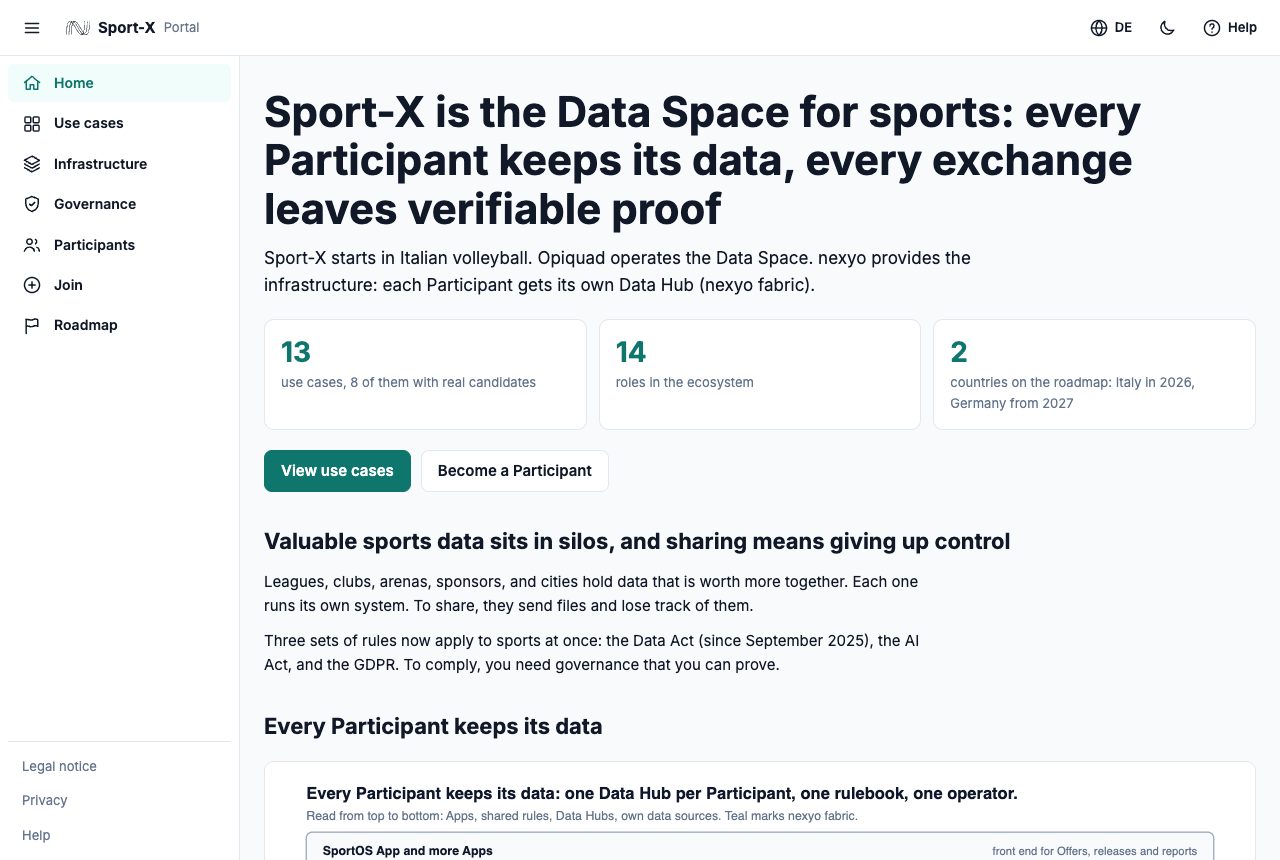
The portal is the entry page of the Sport-X Data Space. Opiquad operates the Data Space. The infrastructure is nexyo fabric.
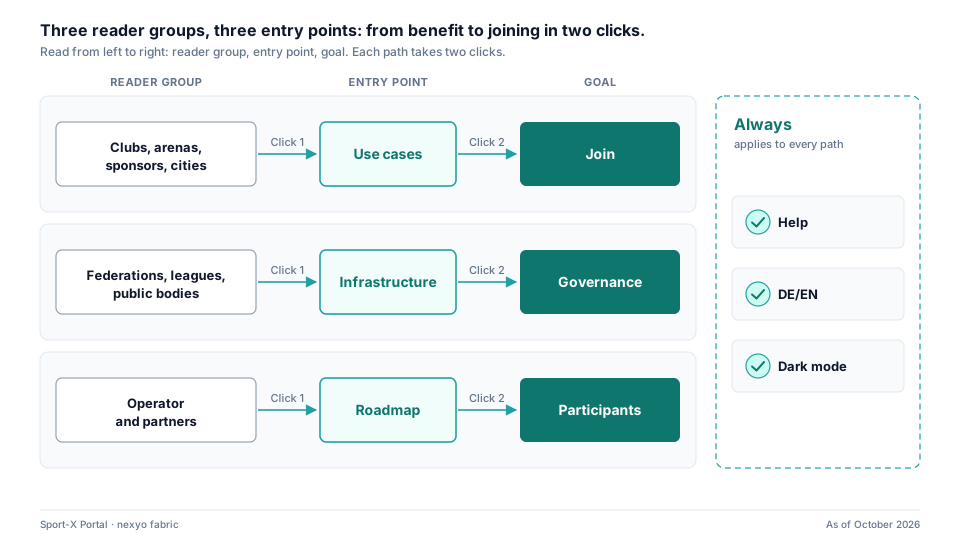
The portal has three reader groups:
- Clubs, arenas, sponsors, and cities
- Federations, leagues, and public bodies
- Operators and partners
The portal holds no data and needs no login. The Demo Explorer at sportapp.nexyo.io shows an exchange with synthetic data.
Three reader groups, three entry points: from benefit to joining in two clicks
Nine steps lead you through the portal
Select a page
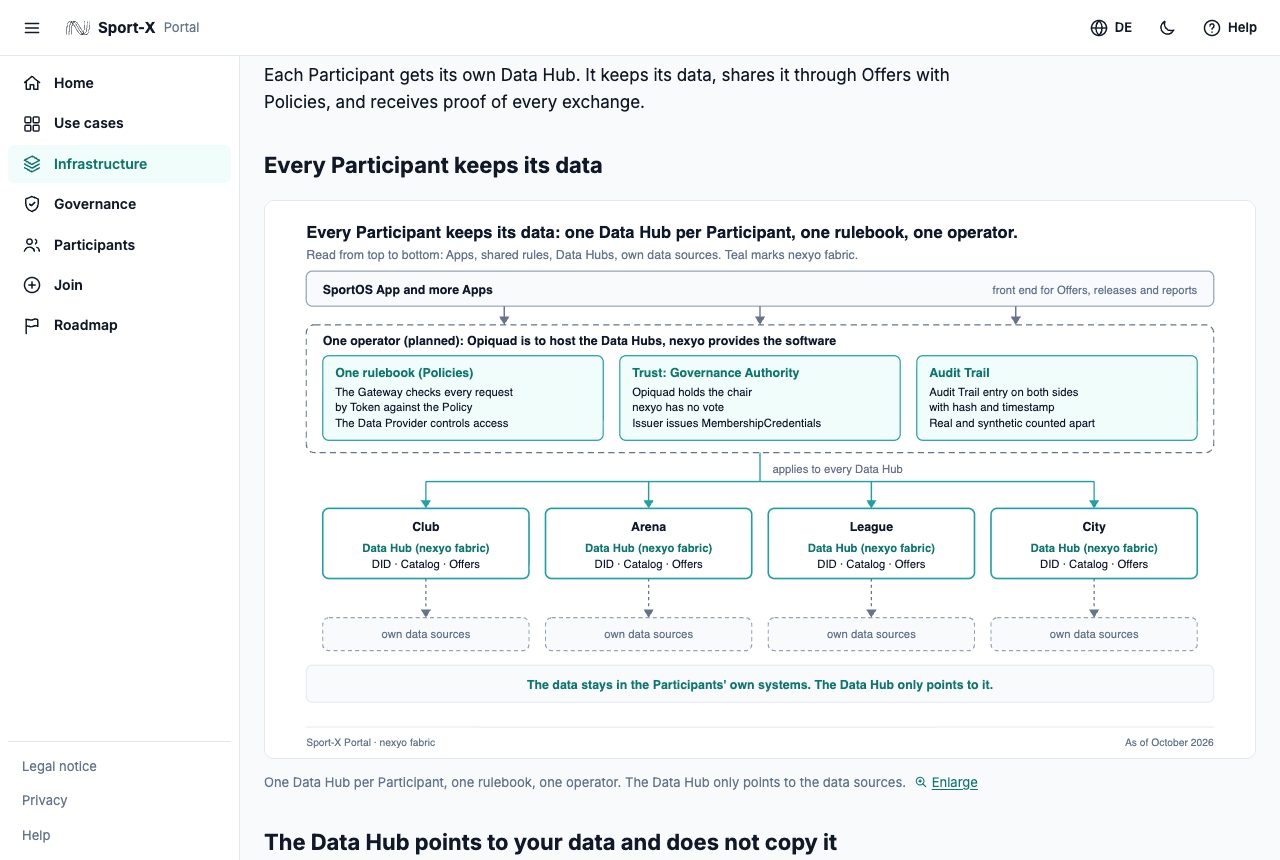
Click an entry in the sidebar on the left. The sidebar leads to Home, Use cases, Infrastructure, Governance, Participants, Join, and Roadmap. The active entry has a colored background.
Filter the use cases
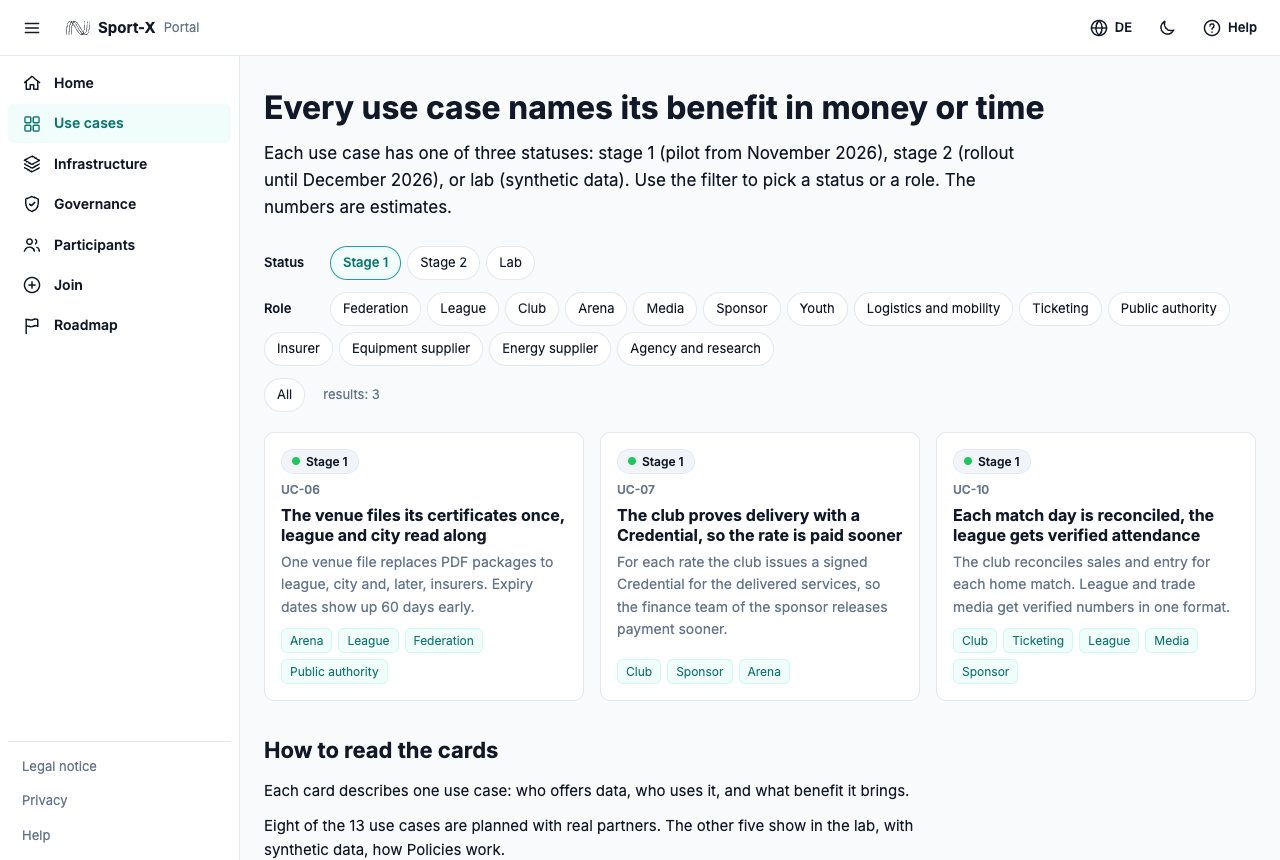
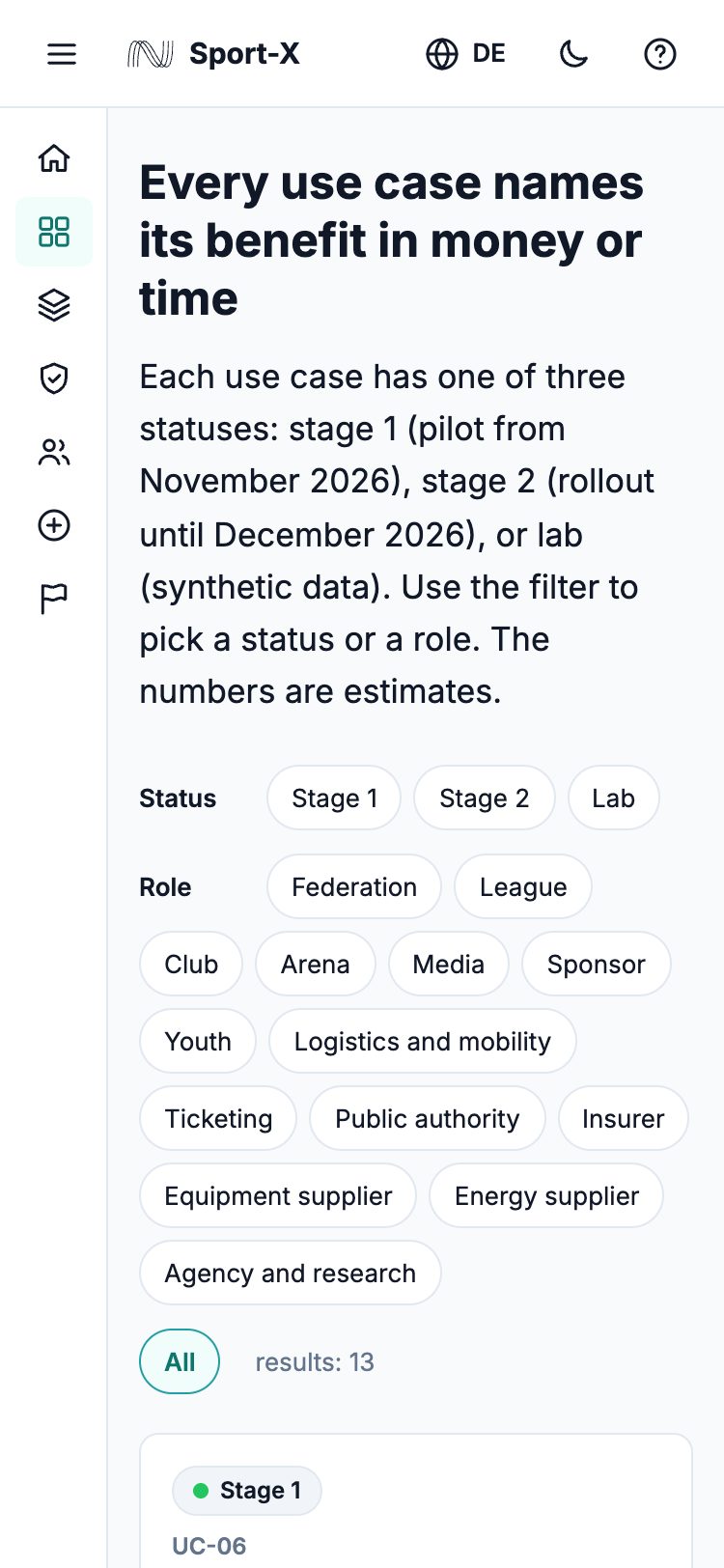
Open the page Use cases. Under Status, click a stage, for example Stage 1. Under Role, click a role, for example Club. The counter results shows how many use cases match. The button All resets both filters.
Read a use case
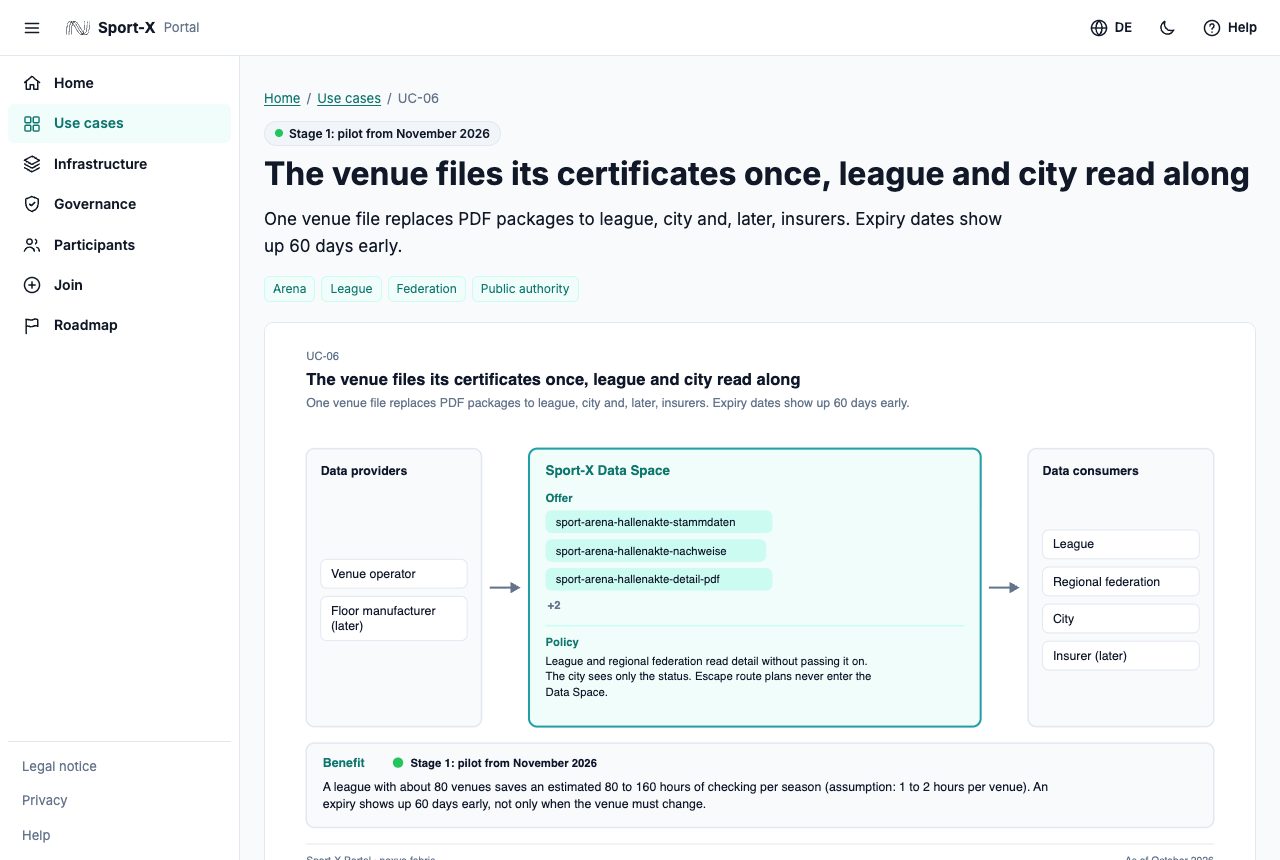
Click a card. The detail page has this layout:
- The status and the roles are at the top.
- The visual shows the flow.
- Problem, Solution, and Benefit follow below.
- Data providers and Data consumers name the parties.
- Possible partners (not yet confirmed) appears for some use cases only.
- Data objects lists the data.
- Policy states the rule for access.
Click Previous use case or Next use case to continue.
Enlarge a visual
Click the link Enlarge below the image. The browser opens the graphic as an SVG file. Use the zoom of your browser to read small text. The back button of the browser returns you to the page.
Switch the language
Click the button with the globe at the top right. It shows the code of the other language: DE or EN. The portal opens the same page in that language. An active filter stays on.
Switch to dark mode
Click the moon icon at the top right (Dark mode). The portal changes to dark mode. In dark mode, the button shows a sun. Click the sun to return to light mode. The portal remembers your choice in this browser.
Collapse the sidebar
Click the menu button with three lines at the top left. On a wide screen, the sidebar shrinks to a bar with icons. Click the button again to expand it. On a phone, the button opens the full sidebar over the content. Tap next to the sidebar to close it.
Become a Participant
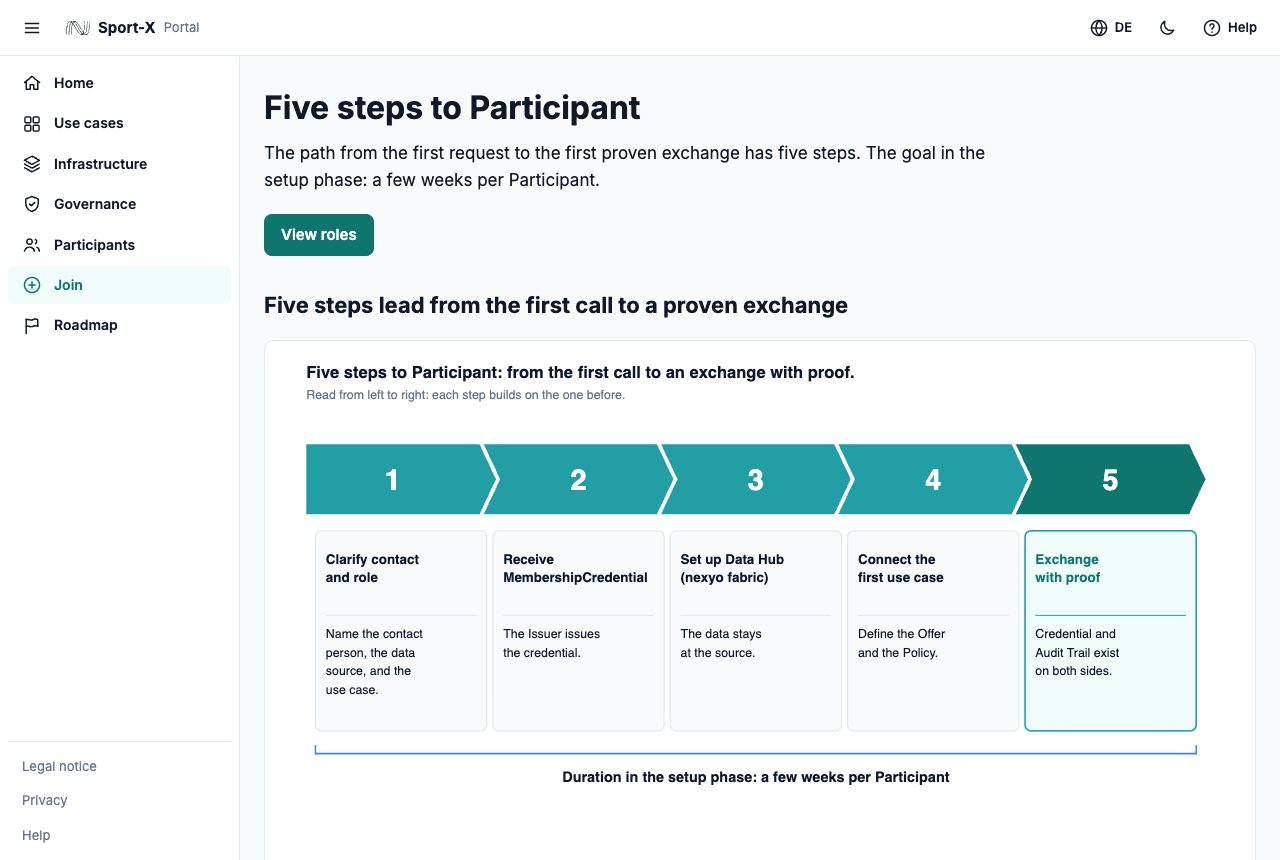
Open the page Join. It shows the five steps from the first call to an exchange with proof. Write to info@nexyo.io with the subject “Sport-X Participant”. Name your organization, your role, and the use case that interests you. People decide on admission.
Check the roadmap and the status
Click Roadmap in the sidebar. The page shows the two stages in 2026 and the step to Germany from 2027. Each use case card has a status: Stage 1, Stage 2, or Lab. Stage 1 is the pilot from November 2026. Stage 2 is the rollout until December 2026. Lab means synthetic data.
Six screenshots show the main views of the portal
Four common errors and their fixes
The filter shows no use case. What do I do?
If no use case appears, no card matches both filters. Click All. The button resets Status and Role. Then select one filter only.
The language switches back. What do I do?
The portal sets no cookie and does not store the language. The address sets the language: addresses with /de/ are German, all other addresses are English. If the page shows the wrong language, click the button with the globe at the top right. Then bookmark the new address.
The visual is too small. What do I do?
Click Enlarge below the image. The browser opens the graphic as an SVG file. Zoom with two fingers or with the zoom of your browser. On a phone, rotate the screen to landscape.
Dark mode is hard to read. What do I do?
If dark mode is hard to read, click the sun at the top right. The portal changes to light mode and remembers your choice. Without your own choice, the portal follows the system setting of your device. In that case, set the appearance of your device to light.